
Bulk operations
How to use bulk actions for products, bookings, inventory, and customers to save time at scale.
Working at scale
As your catalog and booking volume grows, doing things one at a time becomes slow. Fjellride supports bulk operations across products, bookings, inventory, and customers.
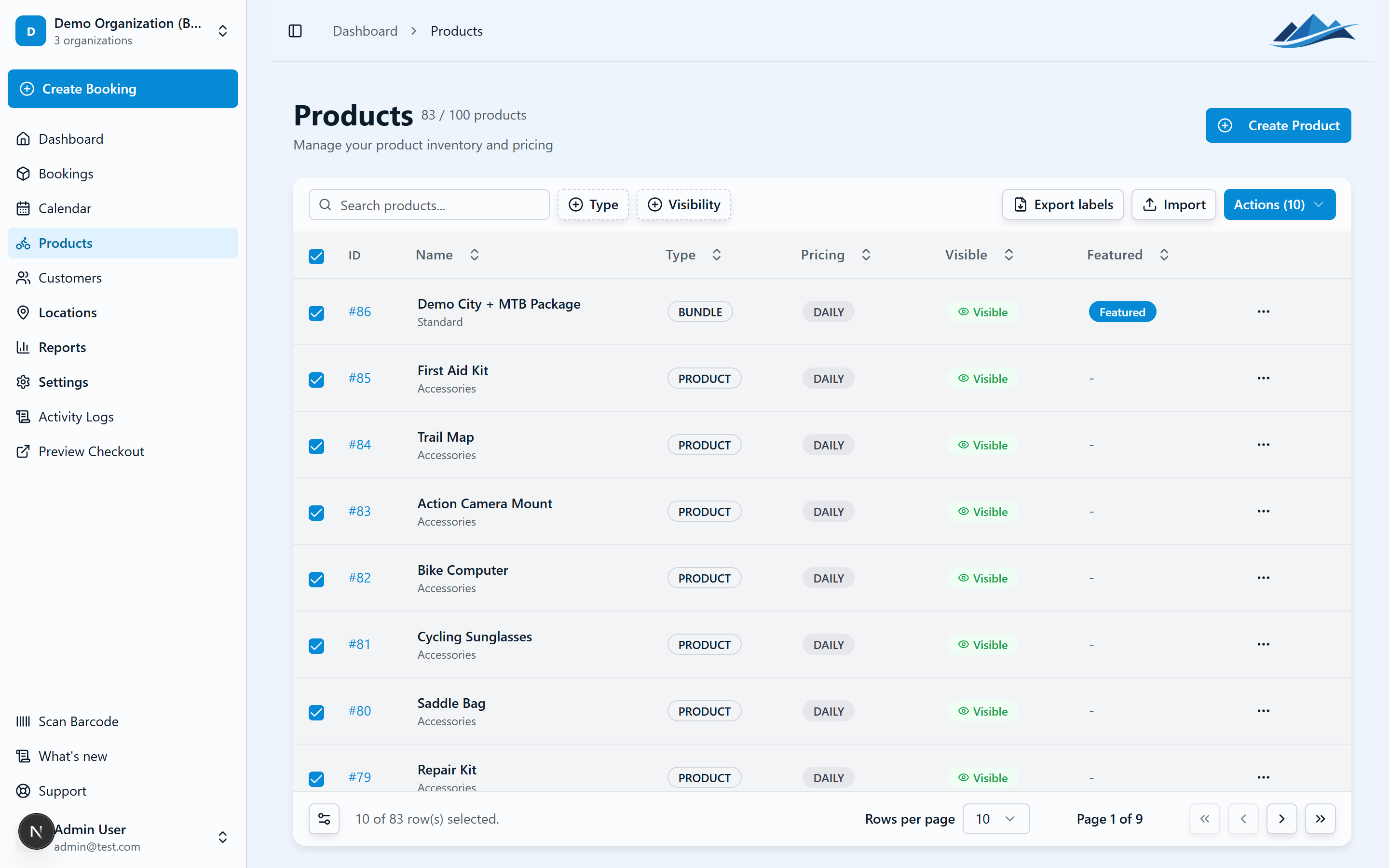
Product bulk actions
Bulk visibility
Show or hide multiple products at once:
- Go to Products
- Select the products you want to change (up to 100)
- Click Set Visibility and choose Visible or Hidden
Bulk featured
Mark multiple products as featured (or remove featured status) in one action.
Bulk delete products
Select and delete up to 100 products at once. This is permanent.
Copy pricing
Copy pricing rules from one product to multiple others:
- Select the source product
- Choose up to 100 target products
- The source product's pricing (base price, extra day price, tier rules) is applied to all targets
Bulk import
Import products from a spreadsheet:
- Go to Products
- Click Import
- Prepare your data with the following fields:
- Name, Type (RENTAL, PRODUCT, or SERVICE)
- Category, Pricing (DAILY or FLAT)
- Base price (in minor units, minimum 1)
- And other optional fields
- Upload up to 500 products per import
Booking bulk actions
Bulk status change
Update the status of multiple bookings at once:
- Go to Bookings
- Select the bookings to update
- Click Change Status
- Choose the new status
All selected bookings are updated. Inventory adjustments happen automatically (e.g. cancelling releases inventory).
Bulk archive bookings
Move completed or old bookings to the archive to keep your active list clean. Select bookings and click Archive.
Bulk delete bookings
Permanently delete multiple bookings. Select and click Delete.
Inventory bulk actions
Bulk add inventory
Add multiple inventory items to a product at once:
- Open a product
- Go to the Inventory tab
- Click Bulk Add
- Enter the number of items and optional identifiers
Bulk transfer
Move multiple inventory items between locations:
- Select the items to transfer (up to 100)
- Choose the destination location
- Confirm
Bulk availability
Update the availability status of multiple inventory items at once. Options include:
- Permanent — set the status indefinitely
- Limited — set the status for a specific date range (useful for seasonal maintenance)
Customer bulk actions
Bulk archive customers
Select multiple customers and archive them to move them out of your active list.
Bulk delete customers
Delete multiple customer records at once. Customers with active bookings (Reserved, Picked Up) are automatically skipped — you'll see a notification for any that couldn't be deleted.