
Creating products and inventory
How to add rental products, set pricing, track inventory units, and manage your catalog.
Add products to your catalog
Products are the core of your Fjellride rental business. Each product represents something you rent out, sell, or offer as a service.
Product types
Fjellride supports three product types:
- Rental — items customers book for a date range (bikes, skis, kayaks)
- Product — physical goods sold outright (accessories, merchandise)
- Service — add-on services (guided tours, delivery, insurance)
Creating a product
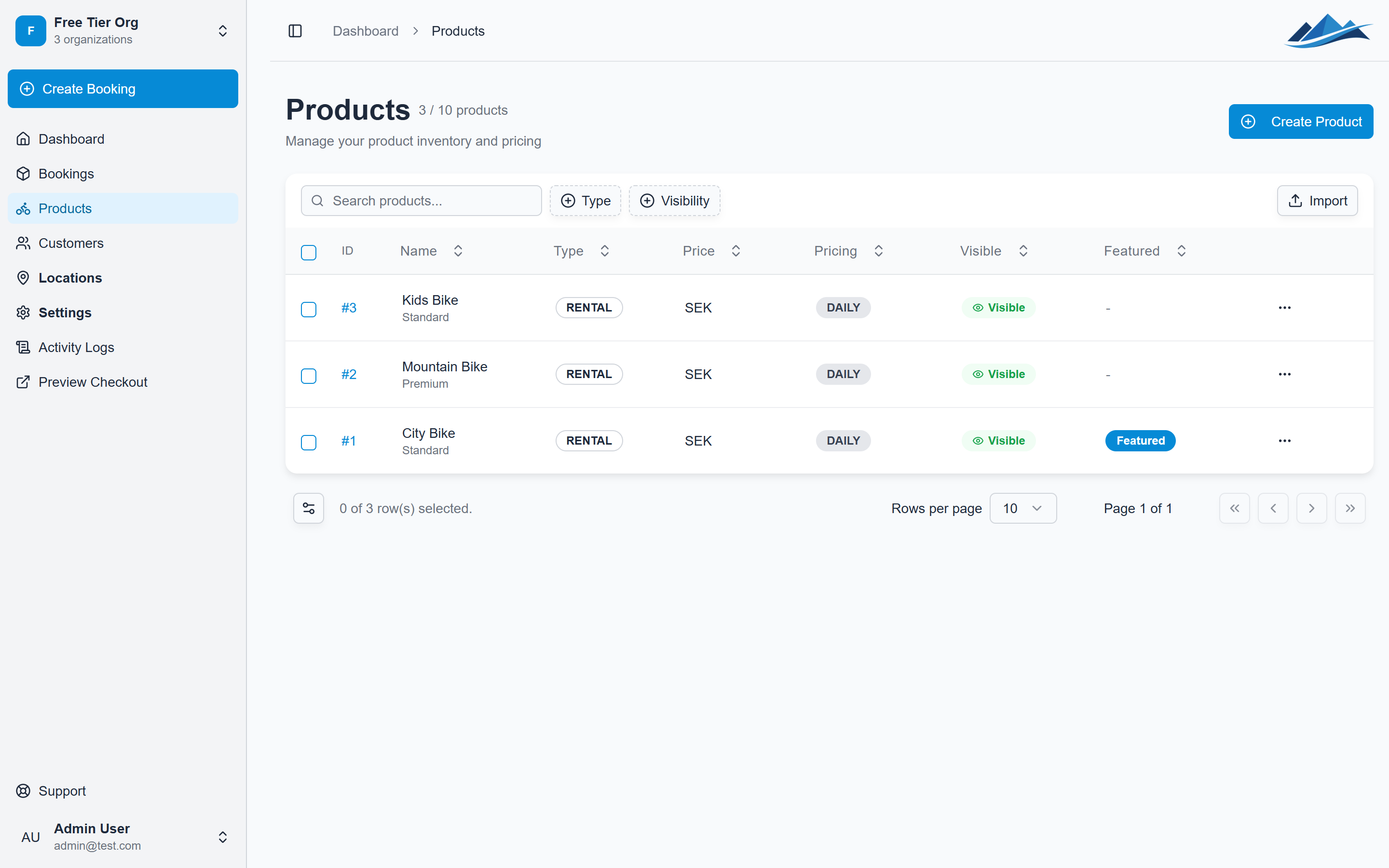
- Navigate to Products in the sidebar
- Click Add Product
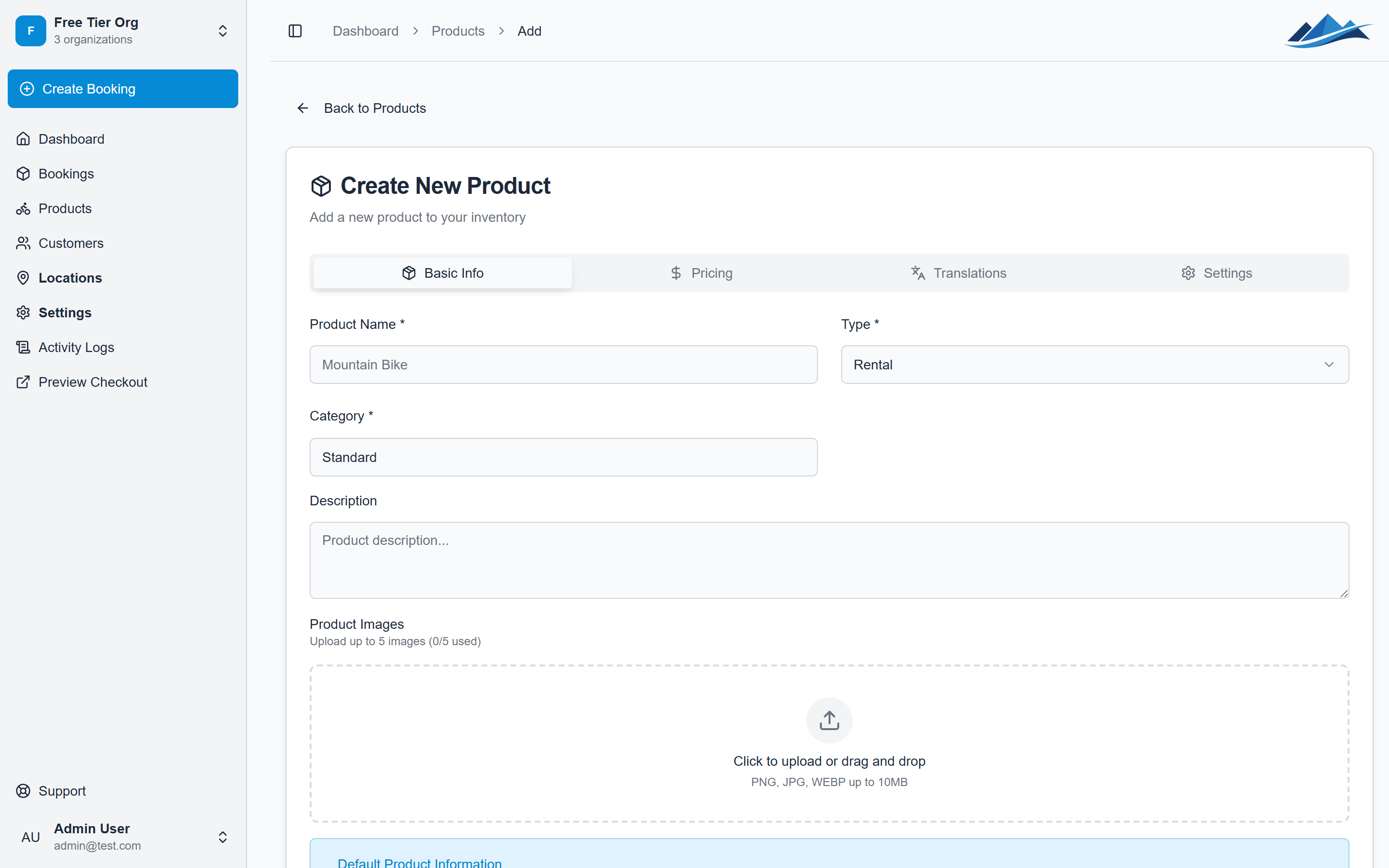
- Fill in the required details:
- Name — a clear, customer-facing title (e.g. "Mountain Bike — Adult")
- Description — help customers understand what they're getting
- Type — choose Rental, Product, or Service
- Category — group similar items together for easy browsing
- Set your pricing (see below)
- Optionally upload product images (up to 5 per product)
- Click Save
Pricing options
Choose the pricing model that fits your business:
- Daily pricing — set a base price per day plus an optional discounted rate for extra days. You can also add pricing tiers for longer durations (e.g. "3+ days at 150 kr/day, 7+ days at 120 kr/day")
- Flat pricing — a single fixed price regardless of rental duration
Product visibility
Products can be marked as:
- Visible — shown on your storefront and available for booking
- Hidden — only visible in the dashboard, not on the storefront
- Featured — highlighted on your storefront for extra attention
Use bulk actions to update visibility or featured status for multiple products at once.
Inventory tracking
If your product is a rental with multiple physical units (e.g. 10 mountain bikes), enable inventory tracking to manage each unit individually.
Adding inventory items
- Open a product and go to the Inventory tab
- Click Add Item (or use Bulk Add for multiple units)
- Optionally assign an identifier — serial number, label, or internal name
- Set the status:
- Available — ready for booking
- Reserved — held for a specific booking
- In use — currently out with a customer
- Maintenance — temporarily out of service
- Inactive — retired or not currently offered
Moving inventory between locations
If you operate from multiple locations, you can transfer inventory items:
- Select the items you want to move
- Choose the destination location
- Confirm the transfer
The system updates availability at both locations immediately.
Tags and metadata
Add tags to products for your own internal organization. Tags help you filter and group products in the dashboard but are not visible to customers.