
AI features (beta)
What the in-product AI can do, how to enable it, and how the beta usage allowance and data processing work.
What the AI can do
Fjellride has in-product AI to help you write copy and get things done faster in the dashboard. It comes in two forms.
The inline AI button
Next to text fields across the dashboard you will find an AI button that lets you work on copy right where you are:
- Generate fresh copy from a short prompt
- Improve what you have already written
- Translate text into another language
It works for product descriptions, translations, booking notes, email and document templates, and storefront copy. Output is produced in the field's language.
The assistant
The assistant is a chat bubble docked in the dashboard. You open it from the launcher in the sidebar footer, just above Support.
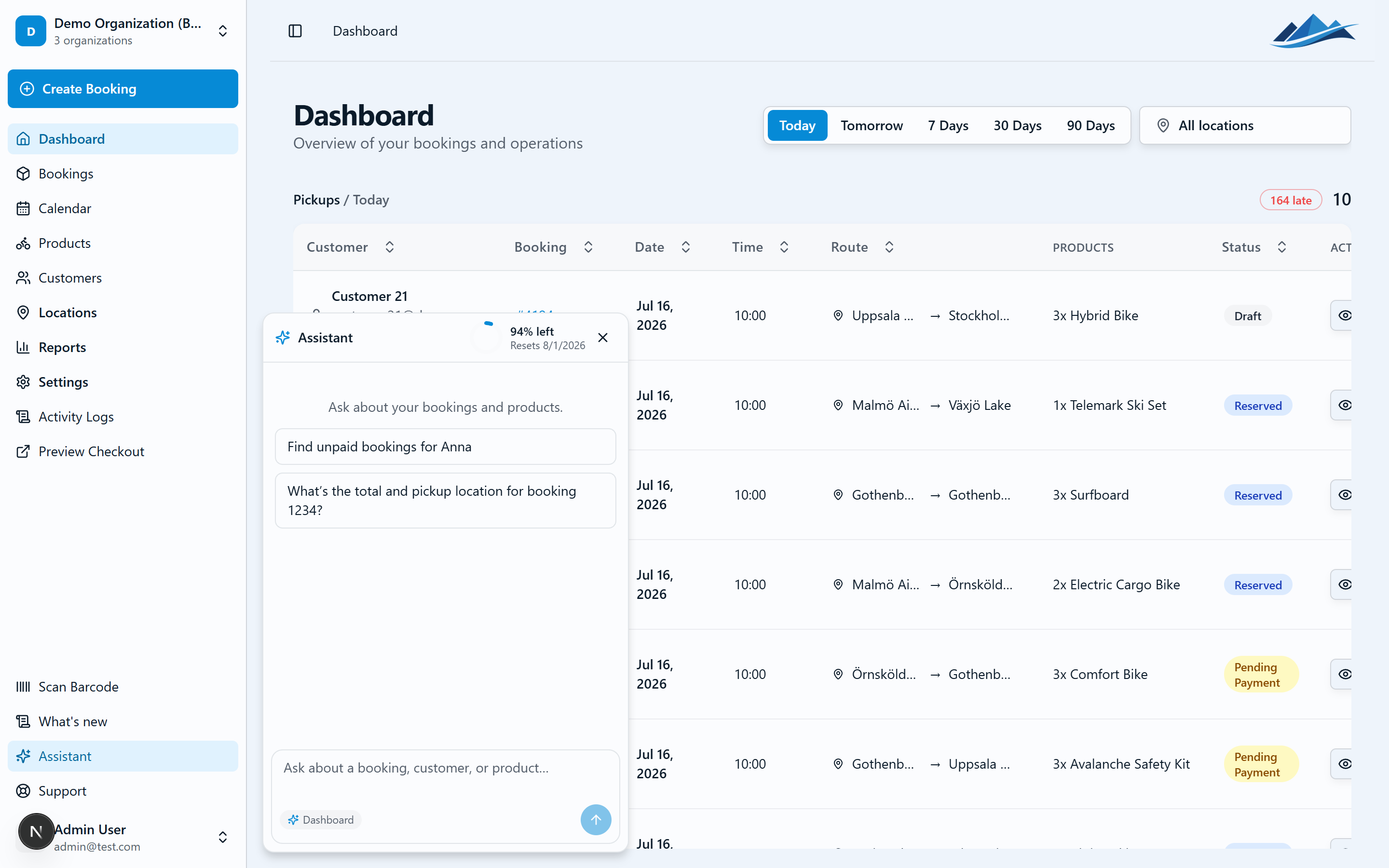
It is aware of the page you are on and can help you:
- Find bookings and summarise them
- Forecast stock sufficiency, for example "will we have enough bikes this weekend?"
- Handle pickup and return fulfillment
- Propose copy
The assistant can read your data freely, but any change it makes is an operator-confirmed write. It never writes anything without you confirming first.
Enabling AI
AI is off by default and requires two things:
- A Business or Enterprise plan.
- A per-organization opt-in.
To turn it on, go to Settings → Organization, find the AI features card, and switch it on.
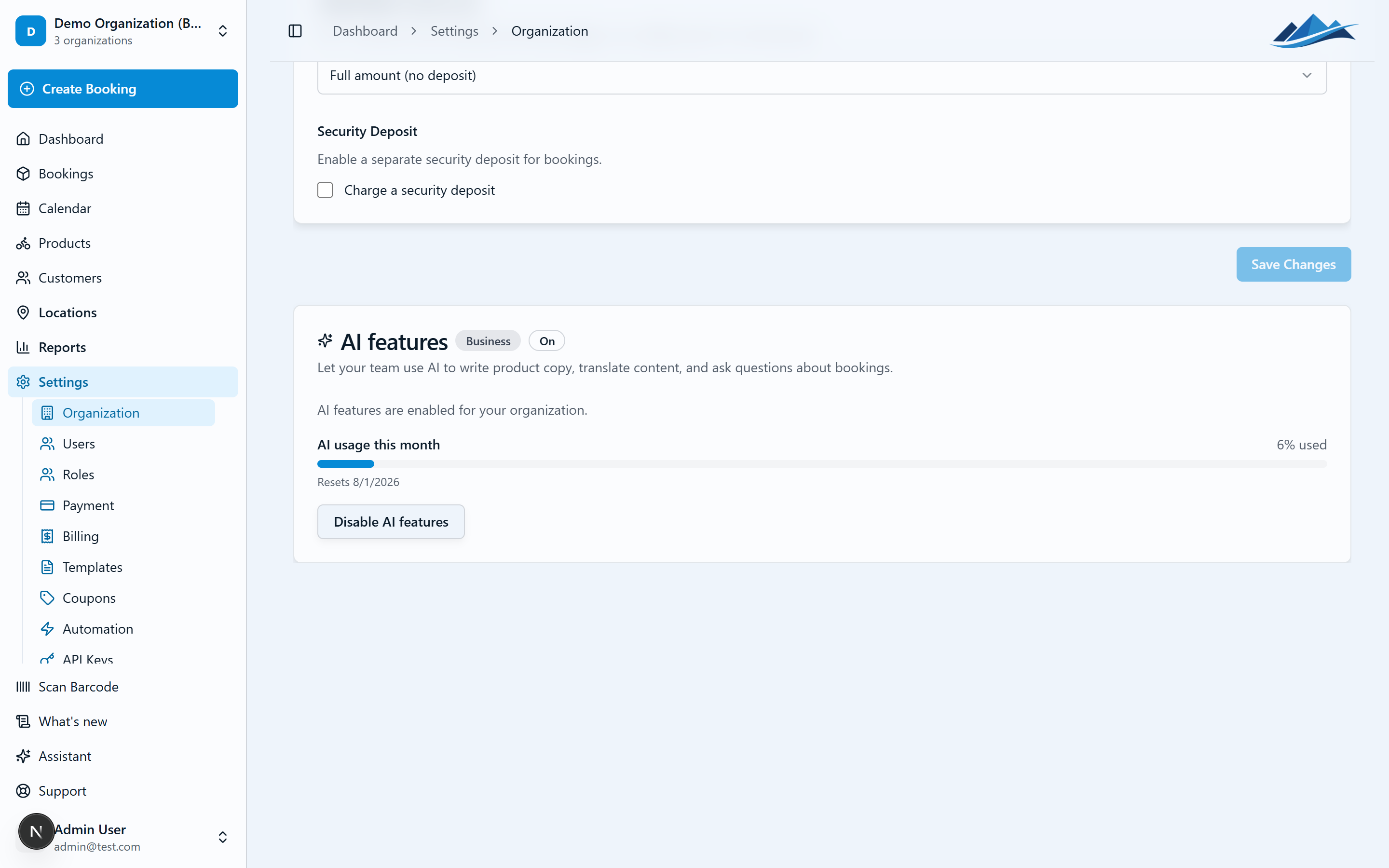
Enabling records your consent to third-party processing (see Data processing below) and to sole liability for how you use the features. Only users with the Settings: update permission can toggle it.
The monthly usage allowance
During the beta, each organization has a fixed $10 USD included monthly usage allowance. This is a hard cap, and it is generous for normal day-to-day use, but it is a beta ceiling for now, so we cannot promise unlimited usage.
There is also a short-term burst limit, a cap on how much you can use within any rolling five-minute window.
- If you hit the five-minute burst limit, AI requests are briefly refused (an HTTP 429 "too many requests"). Wait a moment and try again.
- If you reach the $10 monthly allowance, AI is refused (an HTTP 402) until it resets at the start of the next month.
A usage indicator in the AI features settings card and in the assistant shows how much of the monthly allowance you have used and when it resets.
Data processing
To power these features, Fjellride uses Anthropic as a subprocessor. This means the text you send to the AI is processed by Anthropic in the United States.
For the full details, see your Data Processing Agreement and our terms.
Chats are saved
Every conversation with the assistant is saved, so you can come back to it. Click the chat title at the top of the assistant, or press Cmd+K (Ctrl+K on Windows), to search your past chats and switch between them. The pencil icon starts a fresh one.
Each chat gets a short name of its own, generated from your first question. You can rename it, and you can archive chats you no longer need.
Search looks inside the messages, not only the titles, so you can find a chat by something you talked about rather than having to remember what it was called.
Memories: teaching it how you work
The assistant can remember how your team works, so you do not have to repeat yourself.
The most common way this happens is by correcting it. Ask "what is going out today?", and if it includes draft bookings when you only meant reserved ones, say so. It will redo the answer your way and save a note about it. Next time, and in every future chat, it applies that automatically.
You can also ask it directly: "remember that we call the Uppsala shop the north shop".
When it learns something you see a small Learned note in the chat with an Undo next to it. Everything it has learned lives under Settings → AI → Memories, where you can edit or remove any of it.
Memories are for lasting conventions, not one-off instructions and not customer details. A memory can apply to everyone on your team, which is the default and needs the Settings: update permission, or to just you.
Skills: saving the questions you ask often
If you ask for the same rundown every morning, save it as a skill instead of retyping it.
A skill has three parts:
- Shortcut — what you type, for example
daily - Hint — one line describing when it applies
- Instructions — what the assistant should actually do
Type / in the assistant to see your skills and pick one. The assistant also reads the hints, so it can recognise on its own when a skill fits what you asked.
Create and edit skills under Settings → AI → Skills. Like memories, a skill can be shared with everyone or kept to just you.
Telling us when an answer is wrong
Hover an answer and use the thumbs up or thumbs down. On a thumbs down you can add a sentence about what went wrong, which is far more useful to whoever reviews it than the rating alone.
Dictating instead of typing
If your browser supports it, a microphone button appears in the assistant. Useful when both hands are on a bike. It works well in Chrome and Edge, and the button simply does not appear where it is unsupported.
Reviewing what the assistant told your team
Owners and administrators can read every chat in the organization under Settings → AI → Conversations, and mark each one as approved or flagged with a note. There is a filter for chats where somebody marked an answer unhelpful, which is the fastest way to find problems.
By default, your own customers' names and contact details are hidden in that view and shown as placeholders, because checking how the assistant is being used rarely requires them. Choosing to show them is recorded in the activity log.
This is controlled by the Review AI conversations permission, which owners and administrators have by default. It is deliberately separate from the other settings permissions, because reading a colleague's chats is a different kind of access.
How long chats are kept
Conversations are deleted automatically 90 days after their last message. That deletion is permanent.