
Team members and permissions
How to invite team members, assign roles, and manage access permissions for your organization.
Managing your team
Fjellride lets you invite team members to your organization and control exactly what each person can access. This is managed through a role-based permission system.
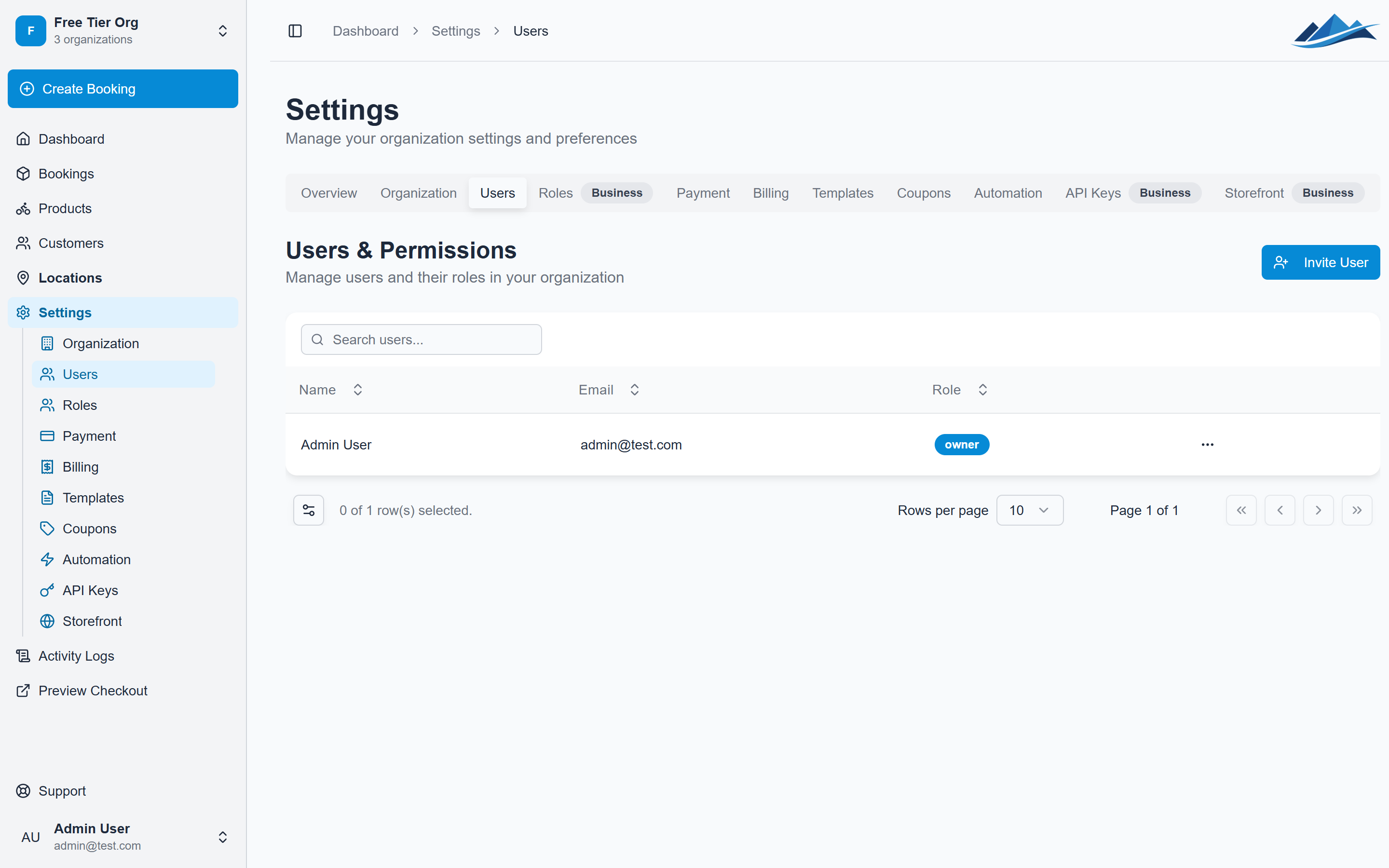
Inviting team members
- Go to Settings → Team
- Click Invite Member
- Enter the person's email address
- Choose a role
- Send the invitation
The invited person receives an email with a link to join your organization. If they don't have a Fjellride account yet, they'll be guided through account creation first.
Default roles
Fjellride comes with four built-in roles:
| Role | Access level |
|---|---|
| Owner | Full access to everything, including billing and destructive actions. Cannot be removed. |
| Administrator | Full access to all features except billing and owner-level settings. |
| Editor | Can manage bookings, products, customers, and day-to-day operations. Cannot change settings or manage team members. |
| Customer | Limited access for customer-facing portal features. Cannot access the dashboard. |
Custom roles
On Business and Enterprise plans, you can create custom roles with fine-grained permissions:
- Go to Settings → Roles
- Click Create Role
- Enter a name (used internally, uppercase letters and underscores)
- Enter a display name (shown in the UI)
- Add an optional description
- Select the permissions this role should have
- Save
Available permissions
Permissions are grouped by feature area:
| Area | What the role can do |
|---|---|
| Users | View, invite, manage team members and roles |
| Products | View, create, update, and delete products |
| Locations | View, create, update, and delete locations |
| Bookings | View, create, update bookings; manage payment status |
| Inventory | View, create, update, delete, assign, and transfer items |
| Payments | Process refunds |
| Documents | View, create, and delete documents |
| Templates | View, create, update, and delete email/document templates |
| Coupons | View, create, update, and delete coupons |
| Tags | View, create, update, delete; attach/detach from records |
| Settings | View and update settings |
| Reports | View reports |
| Activity logs | View activity logs |
| API keys | View, create, update, and delete API keys |
Changing a member's role
- Go to Settings → Team
- Find the team member
- Click their current role
- Select a new role
- Save
Role changes take effect immediately.
Removing a team member
- Go to Settings → Team
- Find the team member
- Click Remove
- Confirm
The person loses access to your organization immediately but keeps their Fjellride account.