
Building document templates
How to create and customize document templates for contracts, invoices, and other rental documents using HTML and Handlebars.
Document template editor
Document templates define the layout and content of contracts, invoices, packing slips, and other documents you generate from bookings. Templates are written in HTML with Handlebars variables for dynamic data.
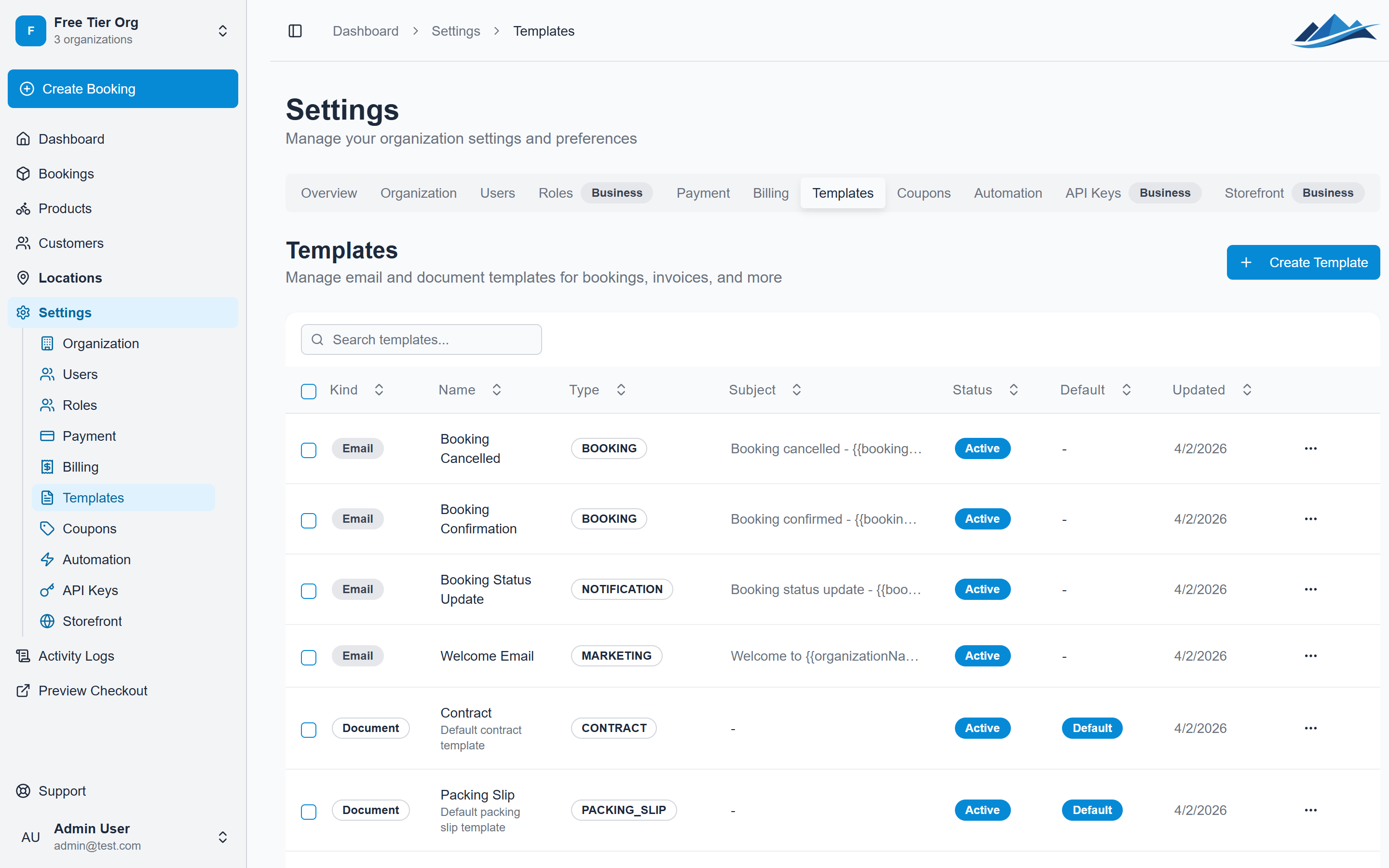
Creating a template
- Go to Settings → Templates
- Click Create Template and choose Document
- Fill in:
- Name — internal name for the template
- Type — Contract, Packing Slip, Order Summary, Invoice, Receipt, or Custom
- Paper size — A4, A3, Letter, or Legal
- Write your template in the code editor
- Save
The code editor
The template editor is a syntax-highlighted code editor (not a drag-and-drop builder). You write HTML directly, with Handlebars expressions for dynamic booking data.
<h1>Rental Agreement</h1>
<p>Customer: {{customerName}}</p>
<p>Booking #{{bookingNumber}}</p>
<p>Period: {{startDate}} — {{endDate}}</p>

<h2>Items</h2>
<table>
  <tr>
    <th>Product</th>
    <th>Quantity</th>
    <th>Price</th>
  </tr>
  {{#each products}}
  <tr>
    <td>{{this.name}}</td>
    <td>{{this.quantity}}</td>
    <td>{{this.price}}</td>
  </tr>
  {{/each}}
</table>
Styling with CSS
Each template has a separate CSS section. Use it to style your document's layout, typography, and appearance. The CSS is scoped to the document — it won't affect other pages.
body {
  font-family: 'Inter', sans-serif;
  color: #1a1a1a;
}
h1 {
  font-size: 24px;
  margin-bottom: 8px;
}
table {
  width: 100%;
  border-collapse: collapse;
}
th,
td {
  padding: 8px;
  border-bottom: 1px solid #e5e5e5;
  text-align: left;
}
Template variables
Variables are replaced with real booking data when a document is generated. Use the Handlebars syntax {{variableName}}.
Common variables
{{customerName}}— customer's full name{{bookingNumber}}— booking reference number{{startDate}}/{{endDate}}— rental dates{{totalPrice}}— total booking amount{{pickupLocation}}/{{returnLocation}}— location names{{organizationName}}— your business name
Loops and conditionals
Use Handlebars helpers for dynamic content:
{{#each products}}
  <p>{{this.name}} — qty: {{this.quantity}}</p>
{{/each}}

{{#if notes}}
  <p>Notes: {{notes}}</p>
{{/if}}
Using AI to build templates
Fjellride includes a prompt builder that helps you draft templates using AI tools like ChatGPT or Claude:
- Open the template editor
- Click the sparkle icon to open the AI prompt builder
- The prompt is pre-filled with your available variables, Handlebars syntax rules, and your branding context
- Copy the prompt and paste it into your preferred AI tool
- Copy the AI's output back
- Click Paste from AI in the editor to import the result
The prompt builder includes your branding colors and font so the AI can generate templates that match your visual identity.
Previewing and testing
After saving a template:
- Open any booking
- Go to the Documents section
- Click Generate Document and select your template
- Review the rendered output
The document is rendered as HTML and can be printed, shared via link, or emailed to the customer.
Template tips
- Keep templates simple and focused — avoid overly complex layouts
- Use semantic HTML (headings, tables, lists) for clean output
- Test with real bookings that have multiple products, long names, and edge cases
- Set one template per type as default so it's pre-selected when generating documents
- Use the clone feature to duplicate a template and make variations (e.g. a short-form vs detailed contract)