
Cancellations and refunds
How to cancel bookings, process full or partial refunds, and understand the impact on inventory.
Cancelling a booking
Cancelling a booking sets its status to Cancelled and immediately releases any allocated inventory back to availability.
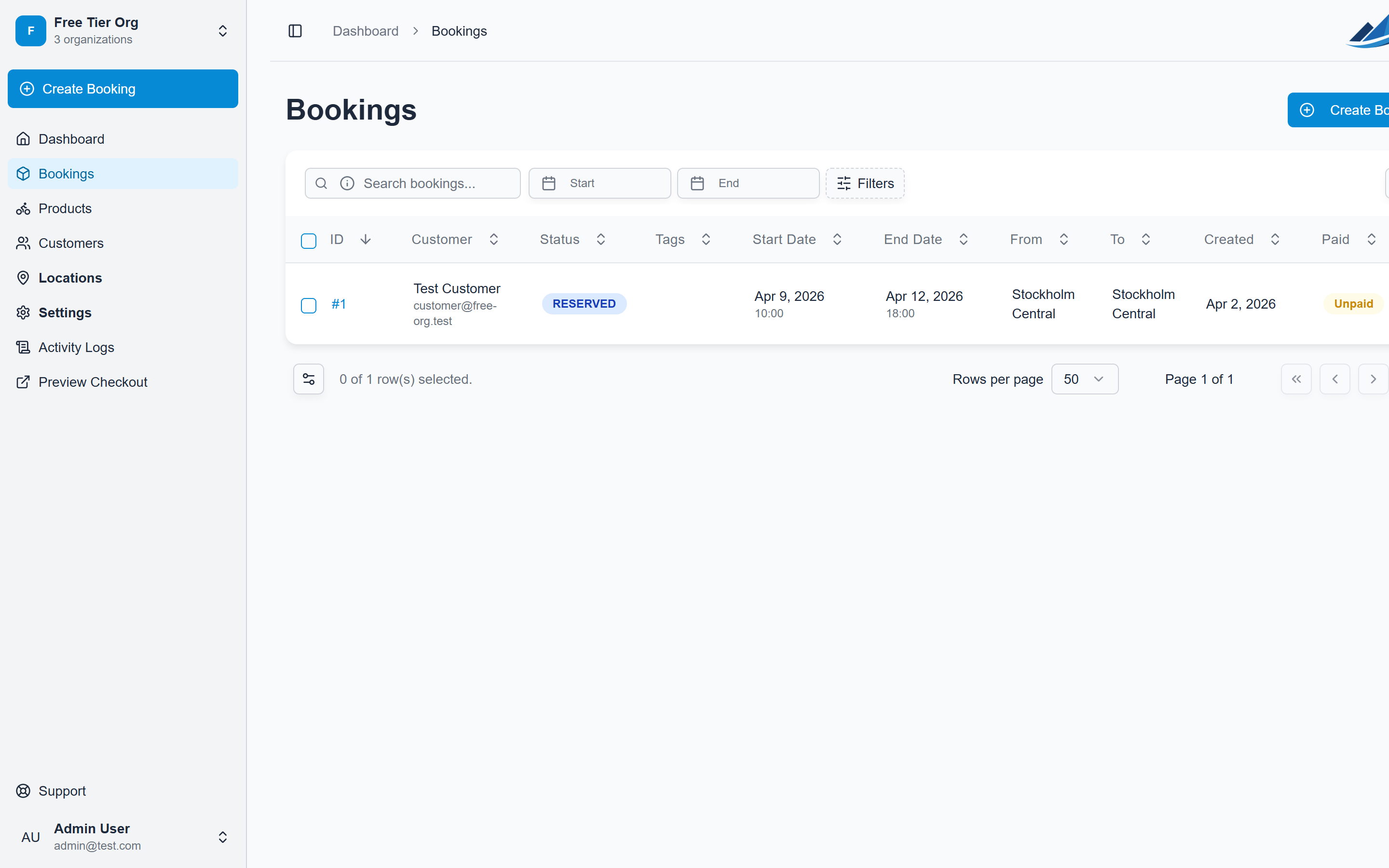
How to cancel
- Open the booking from the Bookings page
- Change the status to Cancelled
- Confirm the action
You can also cancel bookings in bulk by selecting multiple bookings and using the Change Status action.
What happens when you cancel
- Inventory is released — any units assigned to the booking become available again
- The booking remains visible — cancelled bookings stay in your list for record-keeping (you can archive them later)
- No automatic refund — cancelling a booking does not automatically refund the customer. You need to process refunds separately
Processing refunds
Refunds are processed through Stripe and returned to the customer's original payment method.
Full refund
- Open the booking
- Navigate to the payment section
- Click Refund
- Confirm the full refund amount
The full remaining balance (total minus any previous refunds) is returned to the customer.
Partial refund
You can also issue a partial refund for a specific amount:
- Open the booking
- Navigate to the payment section
- Click Refund
- Enter the specific amount to refund
- Confirm
Partial refunds are useful when:
- The customer returned items late and you want to keep a late fee
- Only part of the order was used
- You're offering a goodwill discount after the fact
What happens after a refund
- Full refund on a Reserved booking — the booking status automatically reverts to Concept and inventory is released
- Partial refund — the booking status stays the same; only the payment amount is updated
- Stripe processing — refunds typically appear on the customer's statement within 5–10 business days
Checkout cancellation
If a customer abandons the Stripe checkout page without completing payment:
- The booking stays as Concept
- No payment is captured
- Inventory held during the checkout session is released
- The customer can be redirected back to try again
Expired Stripe checkout sessions are automatically cleaned up.