
Creating bookings
How to create manual bookings from the dashboard for walk-in customers, phone reservations, and internal use.
Creating a booking from the dashboard
While most bookings come through your storefront, you can also create them directly in the dashboard — useful for walk-in customers, phone reservations, or internal holds.
How to create a manual booking
- Navigate to Bookings in the sidebar
- Click Create Booking
- Fill in the booking details (see below)
- Click Save
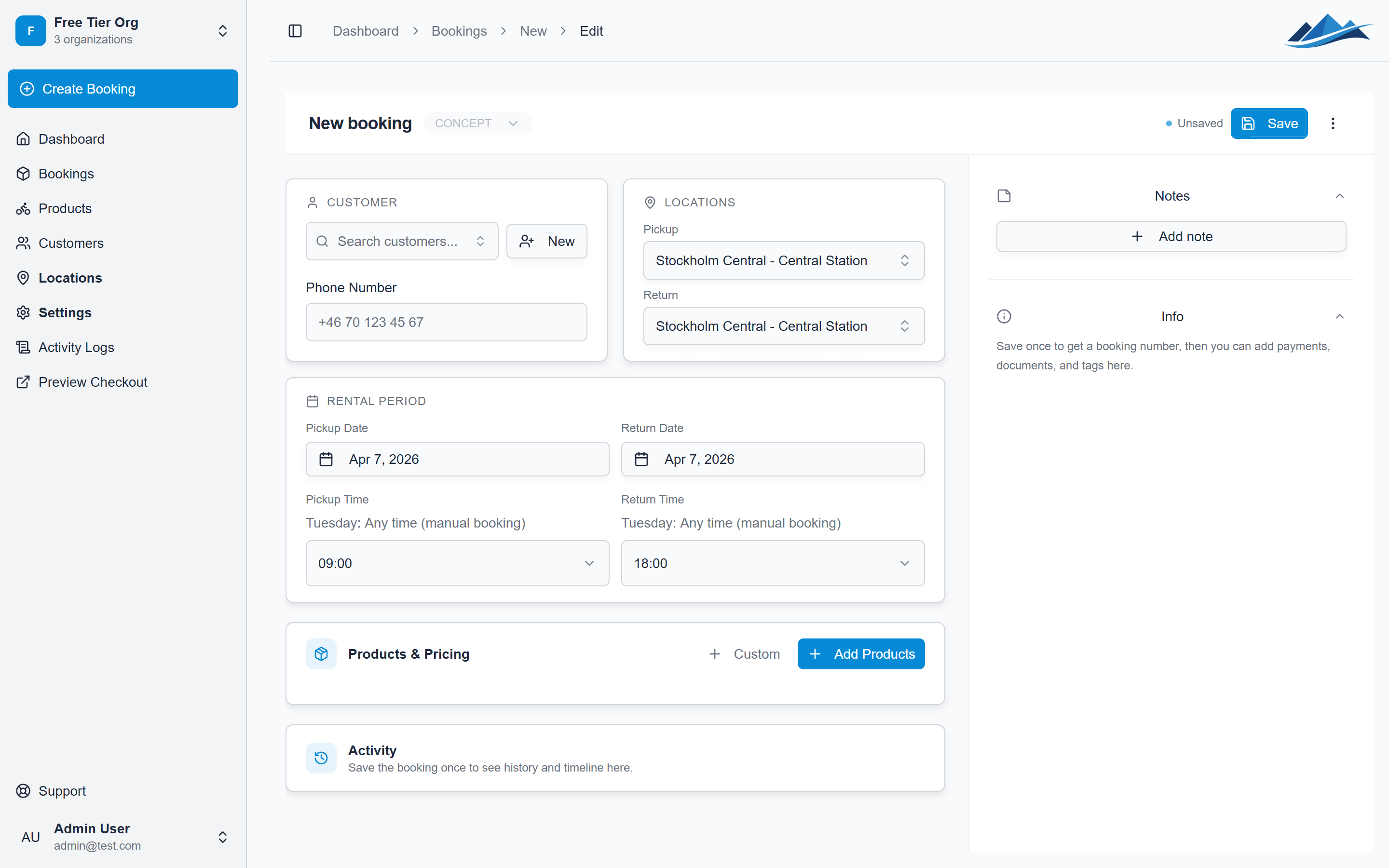
Required fields
Every booking needs at minimum:
- Pickup location — where the customer will collect the items
- Return location — where they'll bring them back (can be the same)
- Start date and end date — the rental period
- Products — at least one product with a quantity
- Status — the initial booking status (see below)
Optional fields
- Customer — link to an existing customer record. Required if the status is anything other than Concept
- Phone number — customer's contact number
- Pickup time and return time — specific times within the rental day (HH:mm format)
- Late drop-off — mark if the customer plans to return after closing hours
- Notes — internal notes visible only to your team
- Tags — label bookings for filtering and organization (e.g. "VIP", "group-booking")
- Custom fields — any additional fields you've configured in your storefront settings
Choosing an initial status
When creating a manual booking, you choose the starting status:
| Status | When to use |
|---|---|
| Concept | Tentative hold — no customer commitment yet |
| Pending Payment | Customer confirmed but hasn't paid |
| Reserved | Paid and confirmed — use for cash or invoice payments |
| Picked Up | Customer is already here and taking the items now |
Products and pricing
When adding products to a booking:
- Select the product and set the quantity
- The price is calculated automatically based on the product's pricing rules and the rental duration
- You can override the price with a custom price per product if needed
- You can also add a custom fee per product for extras
Custom line items
Beyond your catalog products, you can add custom line items to a booking, one-off charges that aren't tied to a product. Use them for things like a cleaning fee, a deposit, a delivery charge, or any ad-hoc add-on.
For each custom line item you set:
- A name (what the customer sees on the booking and any invoice)
- A price and quantity
- A tax rate
Custom line items are included in the booking total and in payment links, receipts, and exports alongside your products.
How availability works
When you create a booking, Fjellride checks whether enough inventory is available at the pickup location for the requested dates. It counts all overlapping bookings in active statuses (Concept through Picked Up) against the available stock.
If a product doesn't track individual inventory units, availability is based on the total quantity you've set for that product.
After creating the booking
Once saved, the booking appears in your bookings list. From there you can:
- Update the status as the rental progresses
- Send emails to the customer
- Add notes
- Process payments or generate payment links
- Duplicate the booking for similar reservations