
Coupons and discounts
How to create discount codes, apply them to bookings, and manage promotional offers.
Using coupons
Coupons let you offer discounts to customers through promotional codes. Customers enter the code during checkout, or you can apply discounts manually when creating bookings.
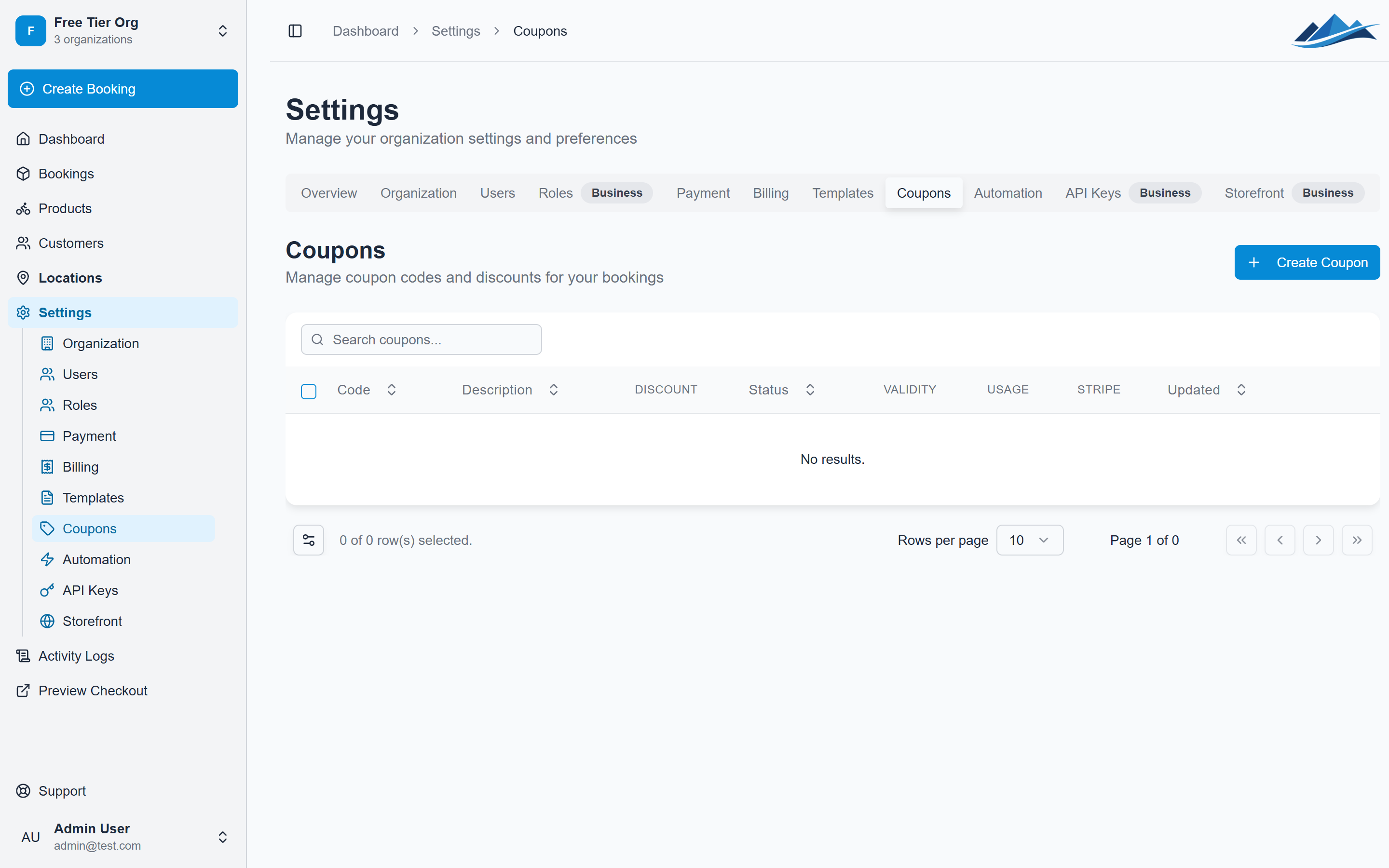
Creating a coupon
- Go to Settings → Coupons
- Click Create Coupon
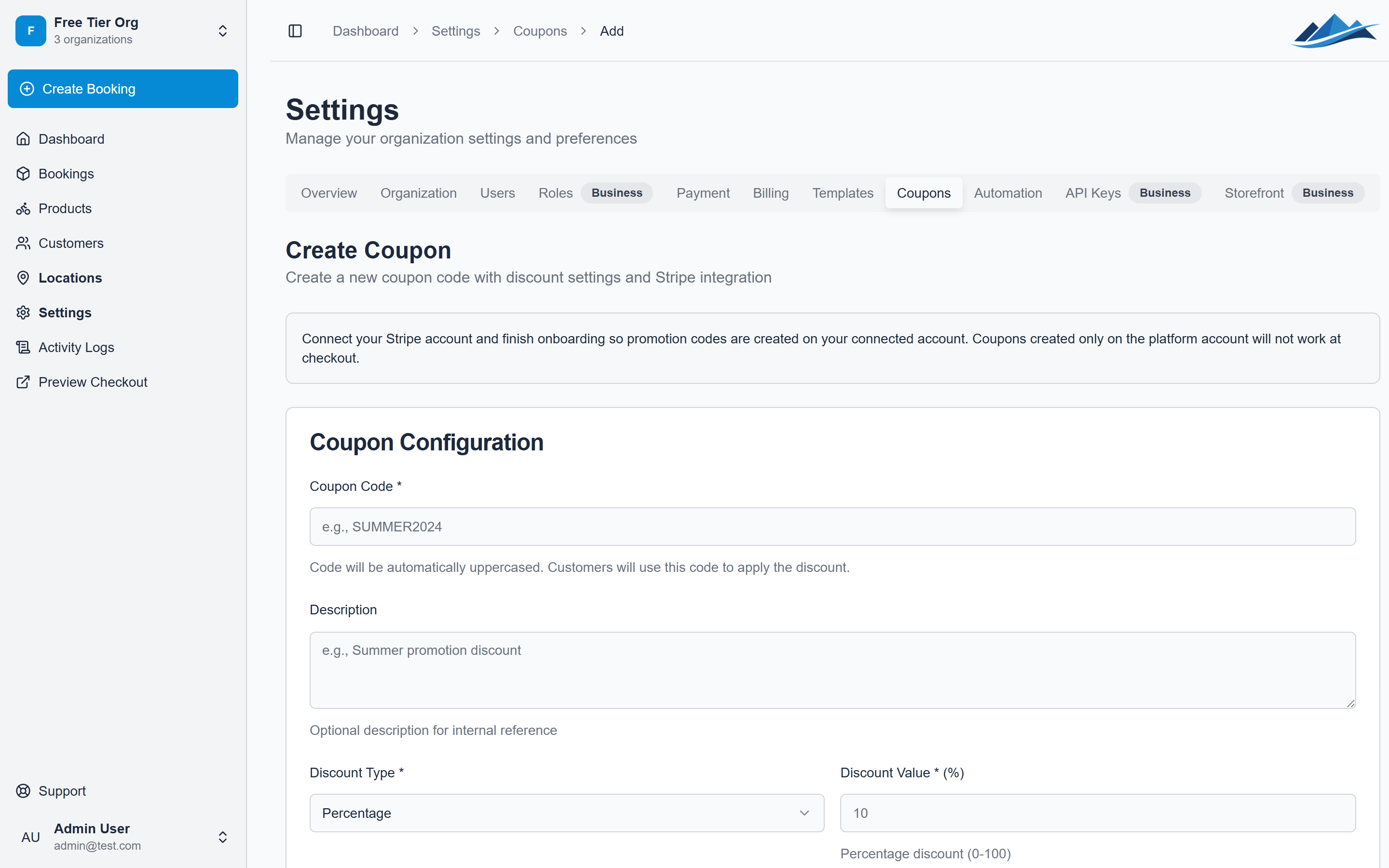
- Fill in the details:
- Code — the text customers will enter (automatically uppercased)
- Description — optional internal note about the promotion
- Discount type — choose Percentage or Fixed Amount
- Discount value — the discount amount (e.g. 20 for 20% or 5000 for 50.00 in your currency)
- Set optional limits (see below)
- Click Save
Discount types
| Type | How it works | Example |
|---|---|---|
| Percentage | Reduces the total by a percentage | 20% off the entire booking |
| Fixed Amount | Subtracts a fixed amount (in minor units) | 5000 = 50.00 off |
Optional limits
Fine-tune your coupon with these settings:
- Minimum order amount — only applies if the booking total is above this threshold
- Maximum discount amount — caps the discount for percentage coupons (e.g. "20% off, up to 200 kr")
- Valid from / valid to — date range when the coupon is active
- Usage limit — maximum number of times the coupon can be used
- Applicable products — restrict the coupon to specific products only
- Active — enable or disable the coupon without deleting it
Stripe sync
When you have Stripe Connect set up, coupons are automatically synced as Stripe promotion codes on your connected account. Checkout then applies the same discounts online as in the dashboard.
Applying discounts to manual bookings
When creating or editing a booking in the dashboard, you can apply discounts manually:
- Coupon code — enter an existing coupon
- Custom discount — set a one-off percentage or fixed amount discount directly on the booking