
Point of Sale (POS) checkout
Take on-site bookings from a shop tablet or register, collect payment in person, and keep everything in your dashboard.
What Point of Sale is
Point of Sale (POS) is an on-site, touch-friendly version of your storefront booking flow. It is made for the counter: a tablet or computer in your shop where you (or the customer, on your device) can put together a booking without paying online first. Payment is collected in person at your register, exactly like a walk-in sale.
It is perfect for walk-in customers, phone reservations you want to enter quickly, or any moment where taking a card or cash at the counter is simpler than sending someone to online checkout.
Enabling POS
POS is included with the Business plan (and Enterprise). It is not a paid add-on. The Free plan does not include POS.
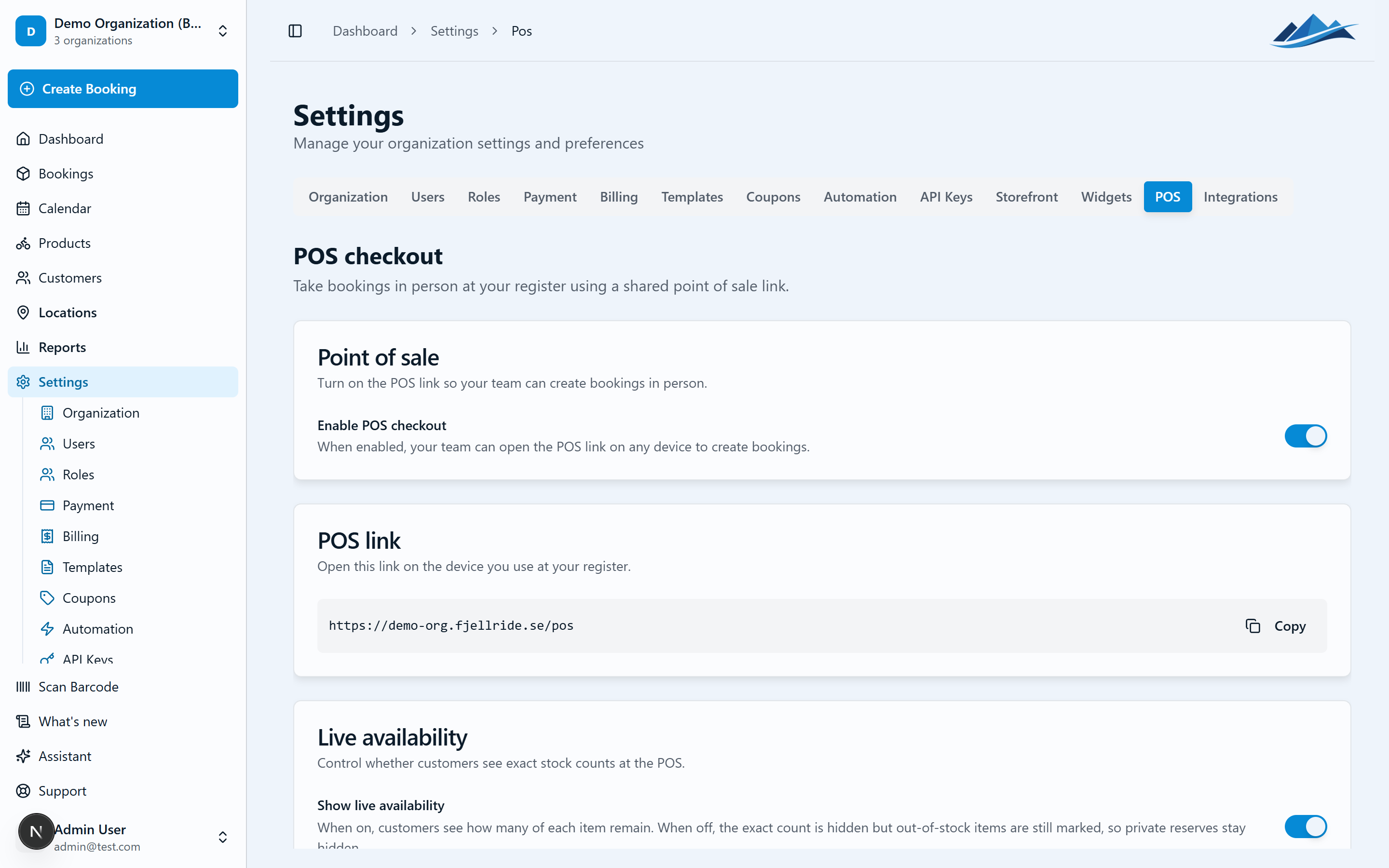
To turn it on, go to Settings → Point of Sale in the dashboard and switch on POS enabled.
The access code (optional)
You can set an optional access code to keep your POS storefront private.
- When a code is set, the POS storefront stays locked until someone enters the code once on a device. That device is then remembered, so staff do not have to type the code every time.
- Clearing or changing the code immediately invalidates all existing unlocks on every device. This is handy if a device is lost or you want everyone to re-enter a new code.
- Leave the code empty for an open register, where no code is required.
Opening the register
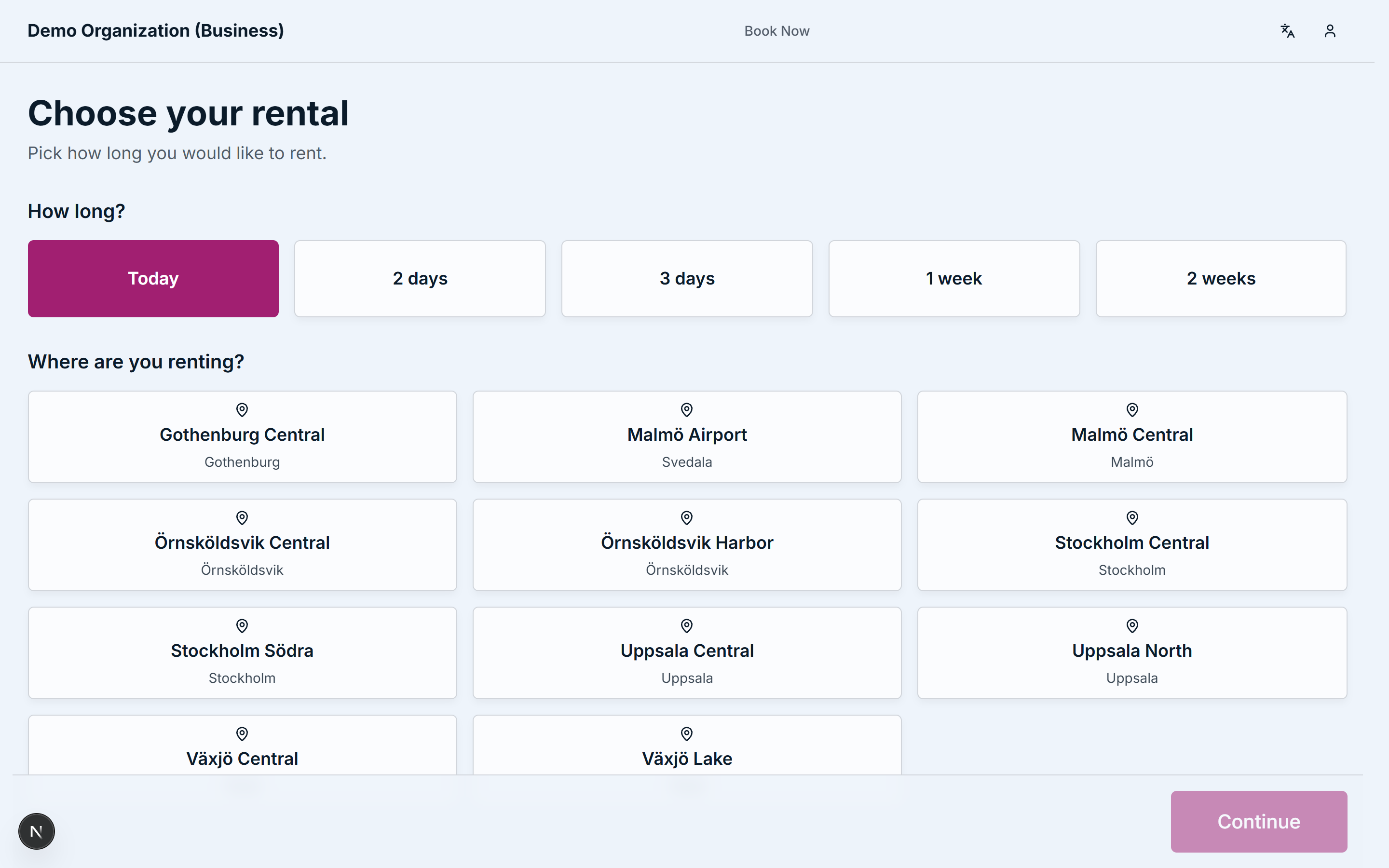
The POS storefront lives at your storefront URL under /pos, for example yourshop.fjellride.se/pos. Open that link on any tablet or computer at the counter.
For quick in-store access, create a QR code that points to your /pos URL and keep it at the counter.
Taking a booking on site
The on-site flow is self-serve and works just like your normal storefront:
- Pick the products the customer wants.
- Choose the dates.
- Enter the customer details.
- Confirm the booking.
There is no staff PIN. Anyone at the unlocked device can complete a booking, whether that is a staff member or the customer on your tablet. The customer receives the normal confirmation email once the booking is created.
Getting paid
POS bookings are created in status RESERVED and unpaid. Payment is settled later at your register, in cash or by card, exactly like a manual booking.
When you have collected payment in person, open the booking in the dashboard and use Mark as paid.
The "Show live availability" setting
The Show live availability setting controls how much inventory detail the POS storefront shows.
- On: the POS view shows exact remaining stock counts, so staff can see precisely how many of each item are still available.
- Off: exact stock numbers and private reserves are hidden. Staff and customers still see whether something is available for the chosen dates, but not the precise inventory levels behind it.
Turn it off if you would rather not display exact stock at the counter, and on if seeing exact numbers helps your team.
Where POS bookings show up
Every booking made through POS is tagged with the source POS, so you can find them easily.
- In your booking lists and automation rules, filter by the POS source value to target just these bookings.
- Automation rules can use the POS source to trigger specific follow-ups for on-site bookings.