
Sending emails to customers
How to send booking confirmations, status updates, and custom emails to customers from the dashboard.
Email communication
Fjellride lets you send emails to customers directly from the booking detail page. You can use pre-built templates, customize the content, and attach documents.
Sending an email from a booking
- Open a booking from the Bookings page
- Click Send Email
- Choose an email template
- Optionally customize the subject, body, or add a personal comment
- Preview the email
- Click Send
Email templates
Email templates are reusable message formats that automatically fill in booking details. You can create and manage templates in Settings → Email Templates.
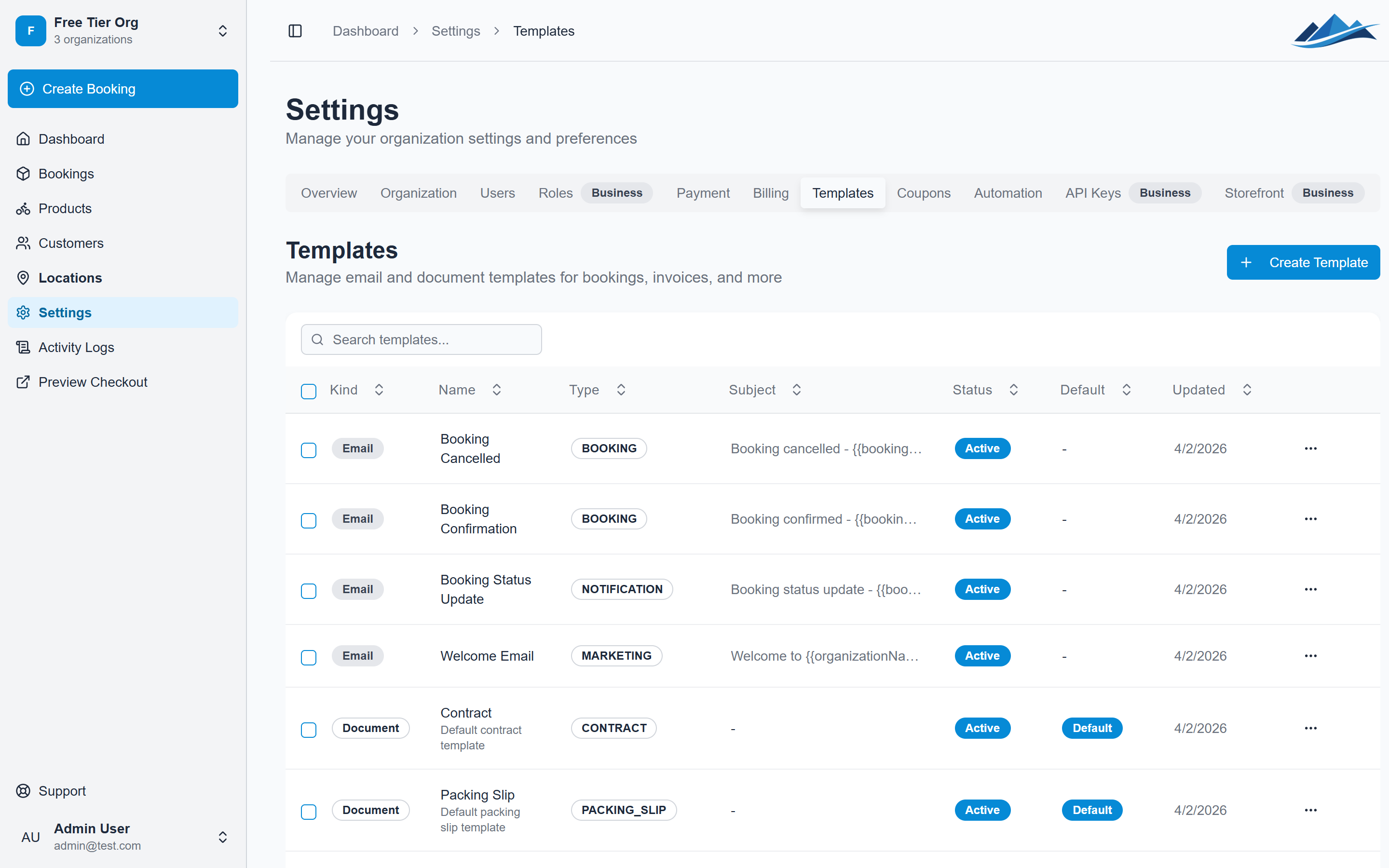
Template types
| Type | Use case |
|---|---|
| Booking | General booking-related emails (confirmation, details) |
| Confirmation | Booking confirmed / payment received |
| Reminder | Upcoming pickup or return reminders |
| Cancellation | Booking cancelled notifications |
| Payment | Payment requests and payment links |
| Notification | Status updates and document delivery |
| Custom | Any other communication |
Template variables
Templates use variables that are replaced with real booking data when sent. Common variables include:
{{customerName}}— the customer's name{{bookingNumber}}— the booking reference number{{startDate}}/{{endDate}}— rental dates{{totalPrice}}— the booking total{{pickupLocation}}/{{returnLocation}}— location names{{customMessage}}— your personal note
Templates support Handlebars syntax for conditional sections and loops, or plain HTML if you prefer full control.
Attaching documents
When sending an email, you can attach up to 10 documents (contracts, packing slips, invoices) that have been generated for the booking. Documents are delivered as HTML-rendered content within the email.
Customizing individual emails
Even when using a template, you can override specific parts for a single send:
- Subject override — replace the template's default subject line
- Body override — replace the entire email body with custom HTML
- Additional blocks — add HTML content before or after the template body
- Comment — add a personal note that's included in the email
Automatic emails
Instead of sending emails manually, you can set up automation rules that send emails automatically when certain events happen. See the email templates and automation guide for details.
Common automation setups:
- Send a confirmation email when a booking moves to Reserved
- Send a reminder the day before pickup
- Send a thank-you when items are returned
- Send a cancellation notice when a booking is cancelled
Email history
Every email sent from a booking is logged. You can view the email history from the booking detail page to see what was sent and when.